 Viondo
01 / WATCH
A bigger screen.
The same library.
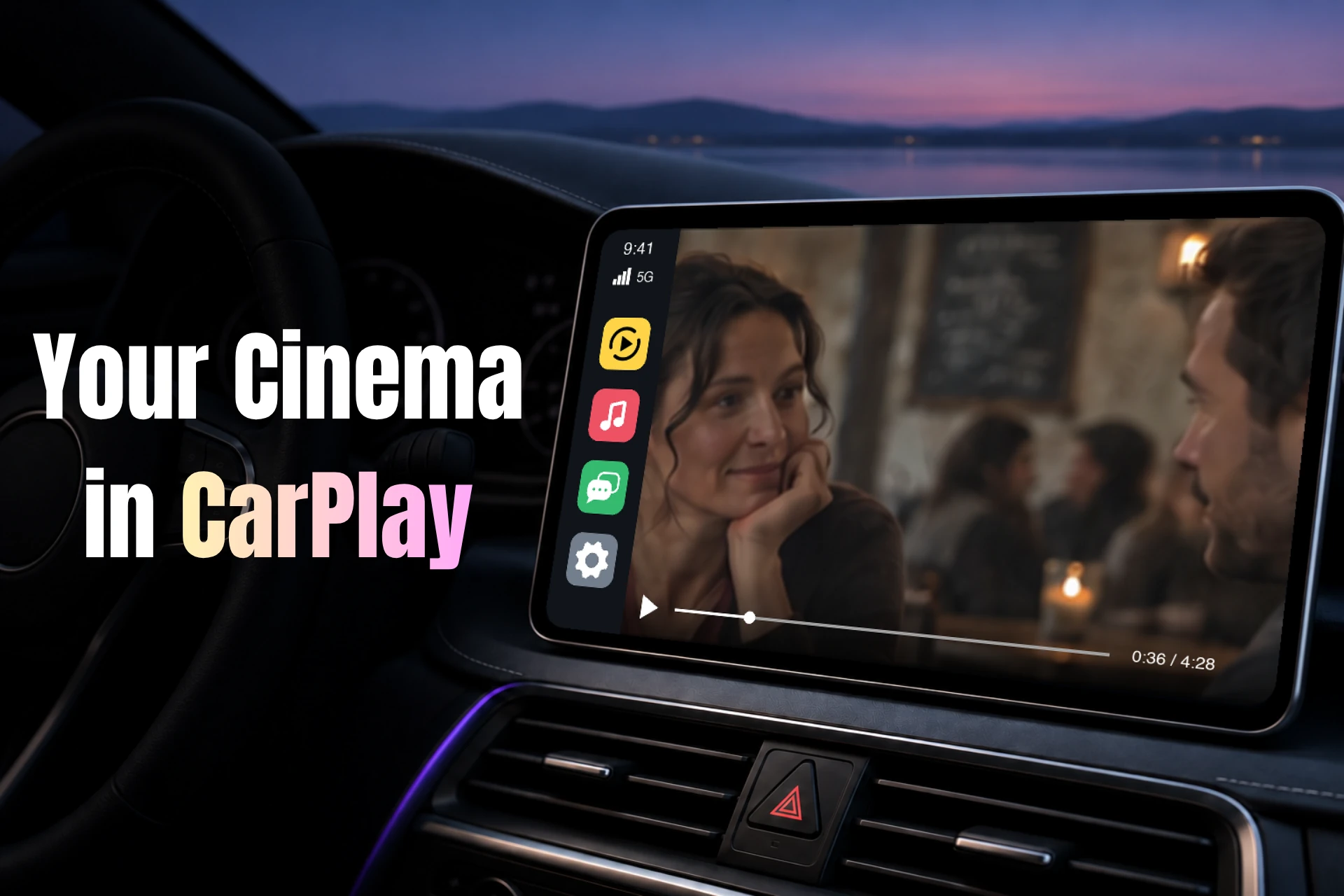
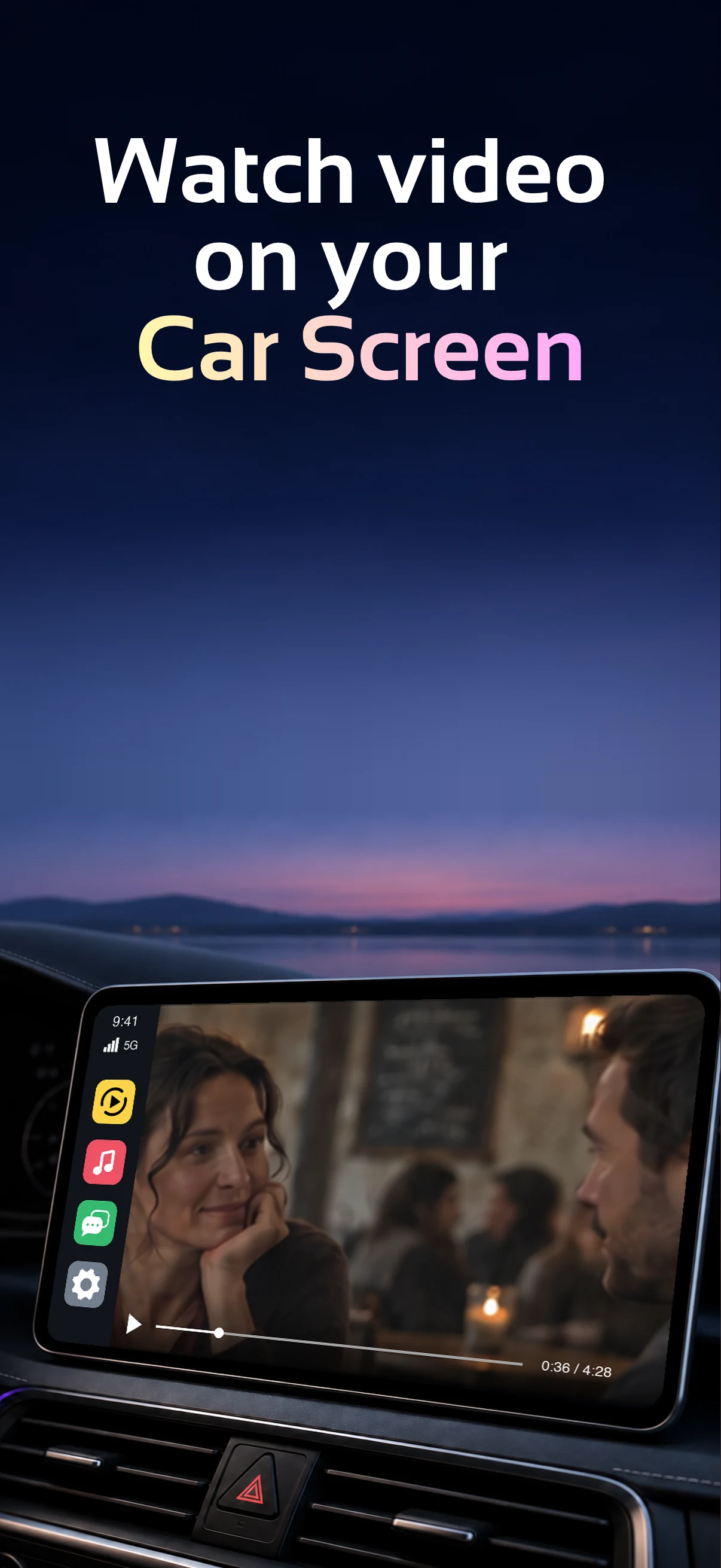
Browse videos, folders and favorites directly in CarPlay. Play on a compatible car display.
Video availability is controlled by your car and iOS.VIONDO FOR IPHONE
Watch your videos on iPhone and compatible car displays. Add playlists, connect your media server, or share your screen with Viondo.
Free Download· Premium features available
For iPhone · Compatible car display required
THE VIONDO TOOLKIT
Browse videos, folders and favorites directly in CarPlay. Play on a compatible car display.
Video availability is controlled by your car and iOS.Share your screen and app audio. Start Screen mirroring from the Car tab, then open the content you want to show.
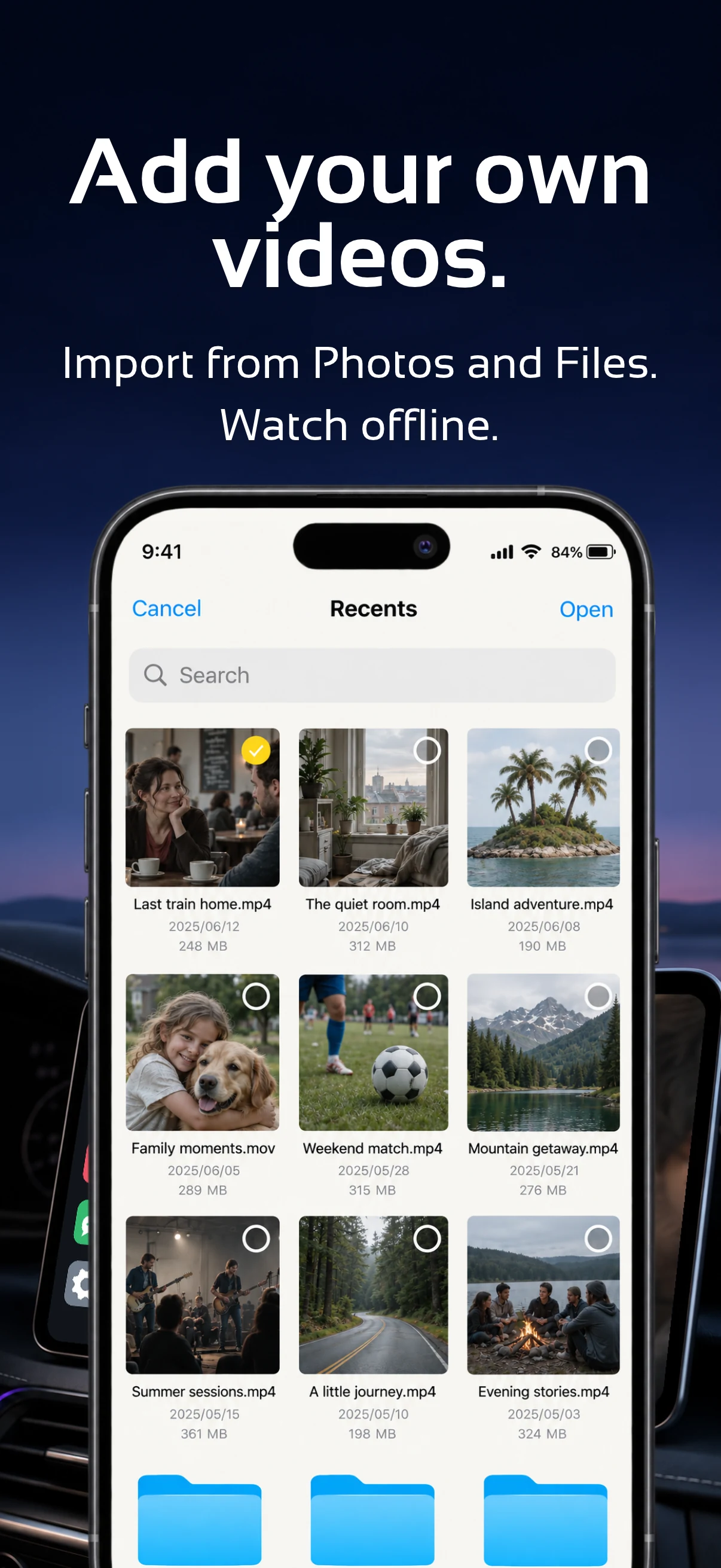
Some apps and protected videos restrict screen sharing.Import from Photos or Files. Keep local videos ready without an internet connection.
Add M3U playlists and supported video links. Your sources, together in one place.
Bring in your own libraries from Jellyfin, Emby, Plex and Xtream.
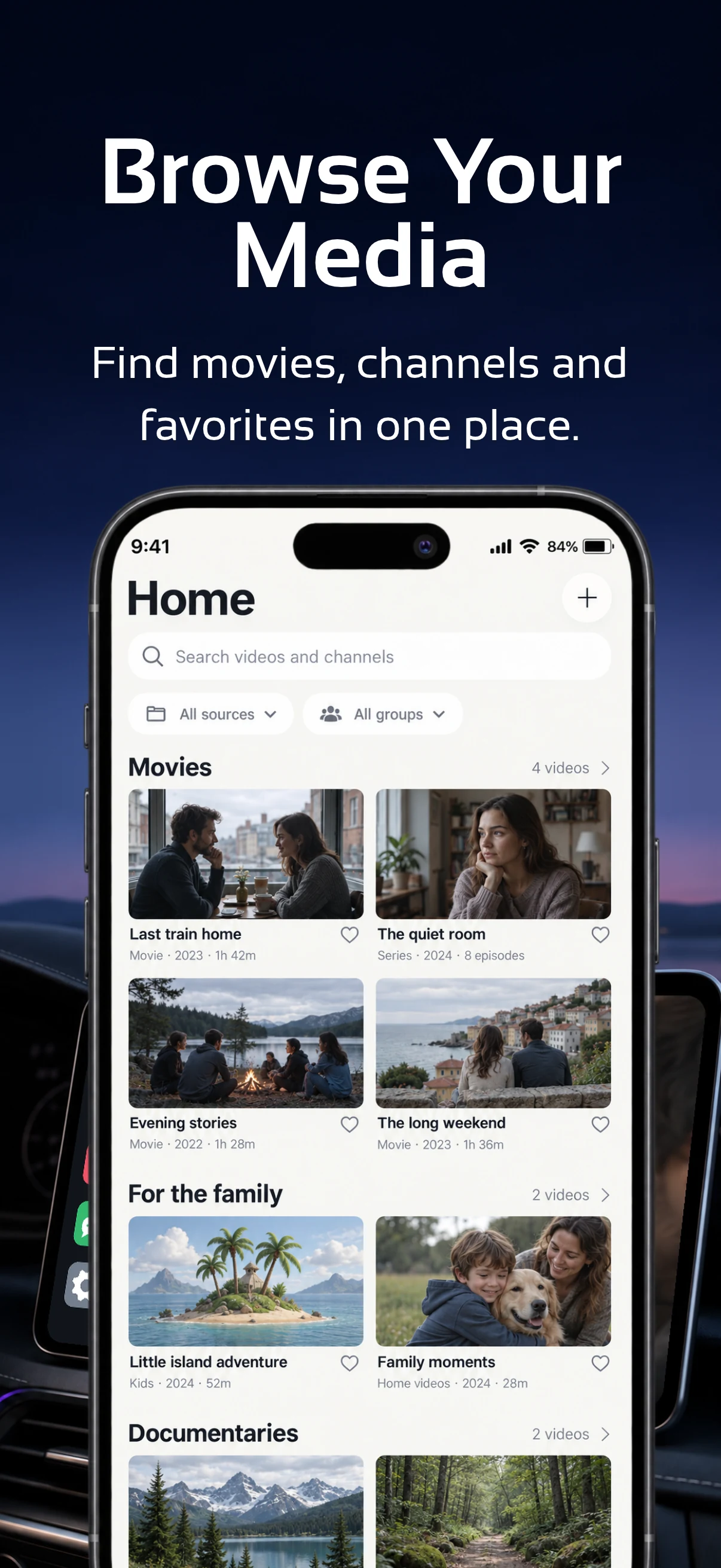
Search videos and channels, filter by source or group, and choose your sort order.
Save the videos you love. Pin a go-to video or folder at the top of your library.
Return to your saved playback position when you are ready to watch again.
VIONDO MOMENTS
Your screen. Your stories. A little more together.
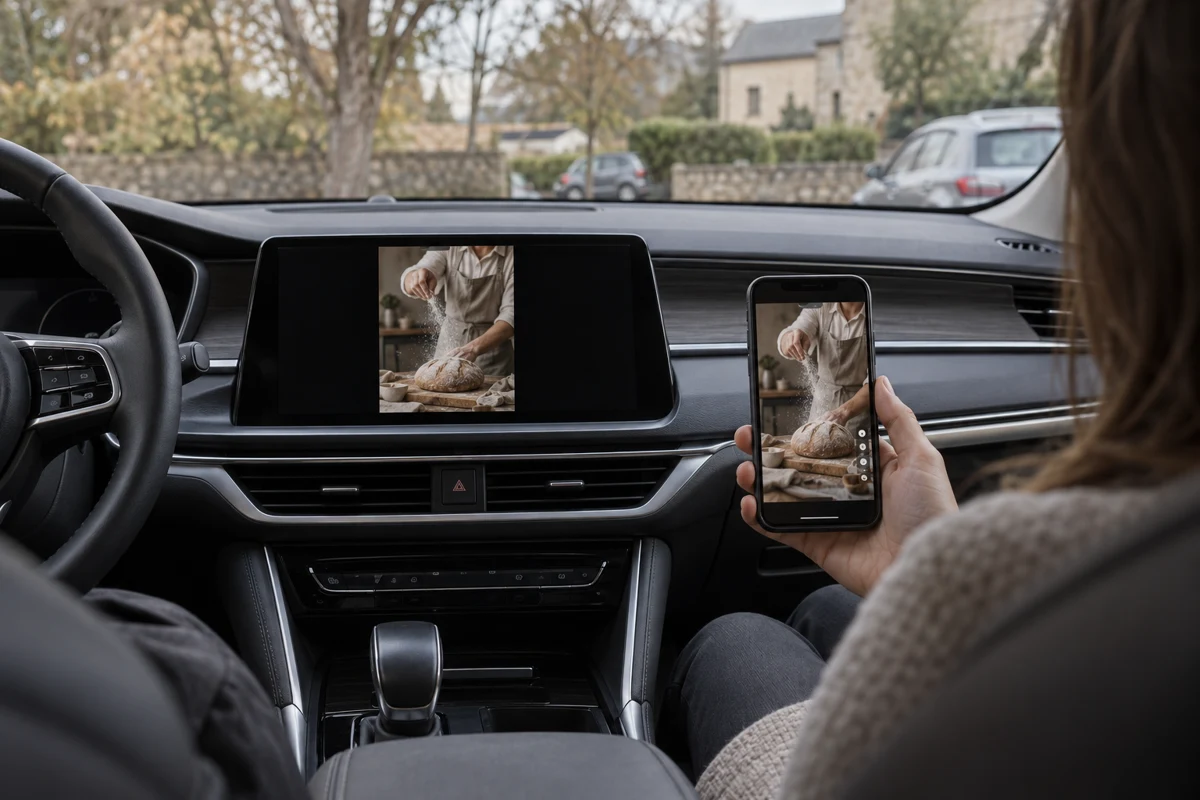
Some apps and protected videos restrict screen sharing.
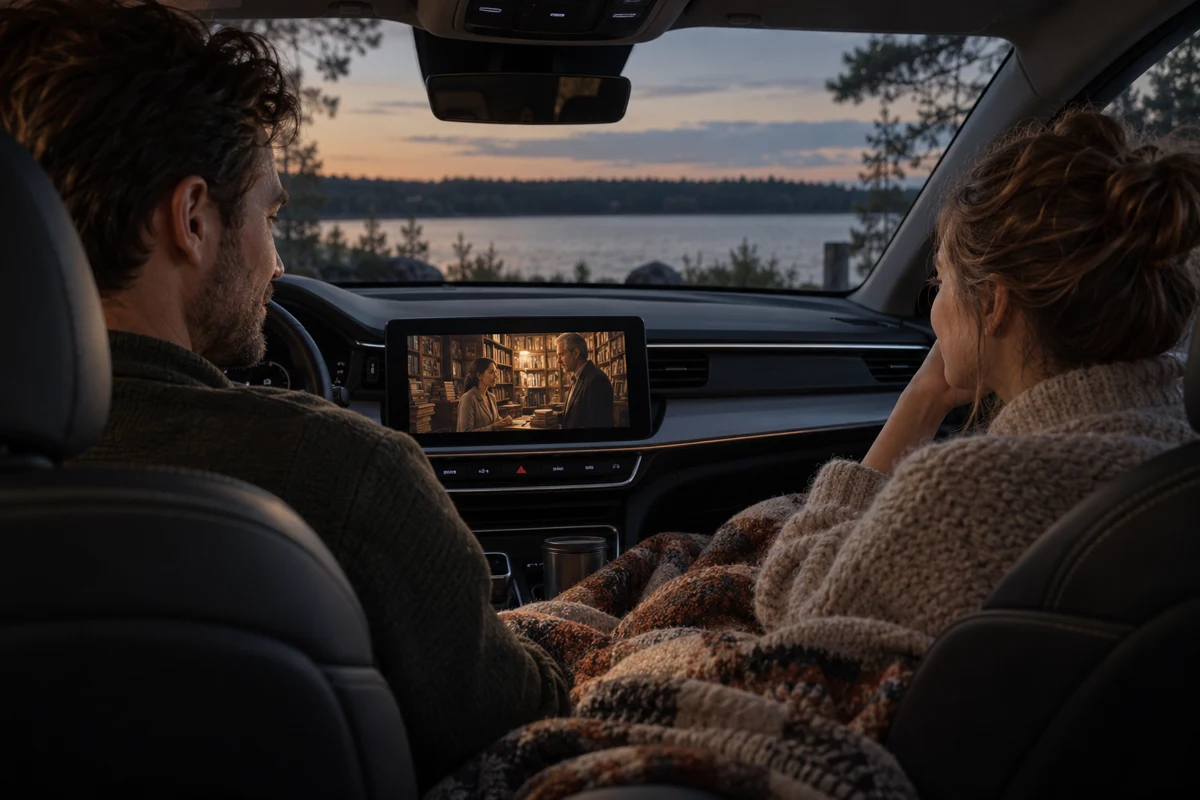
Video playback requires a compatible display and a safely parked car.
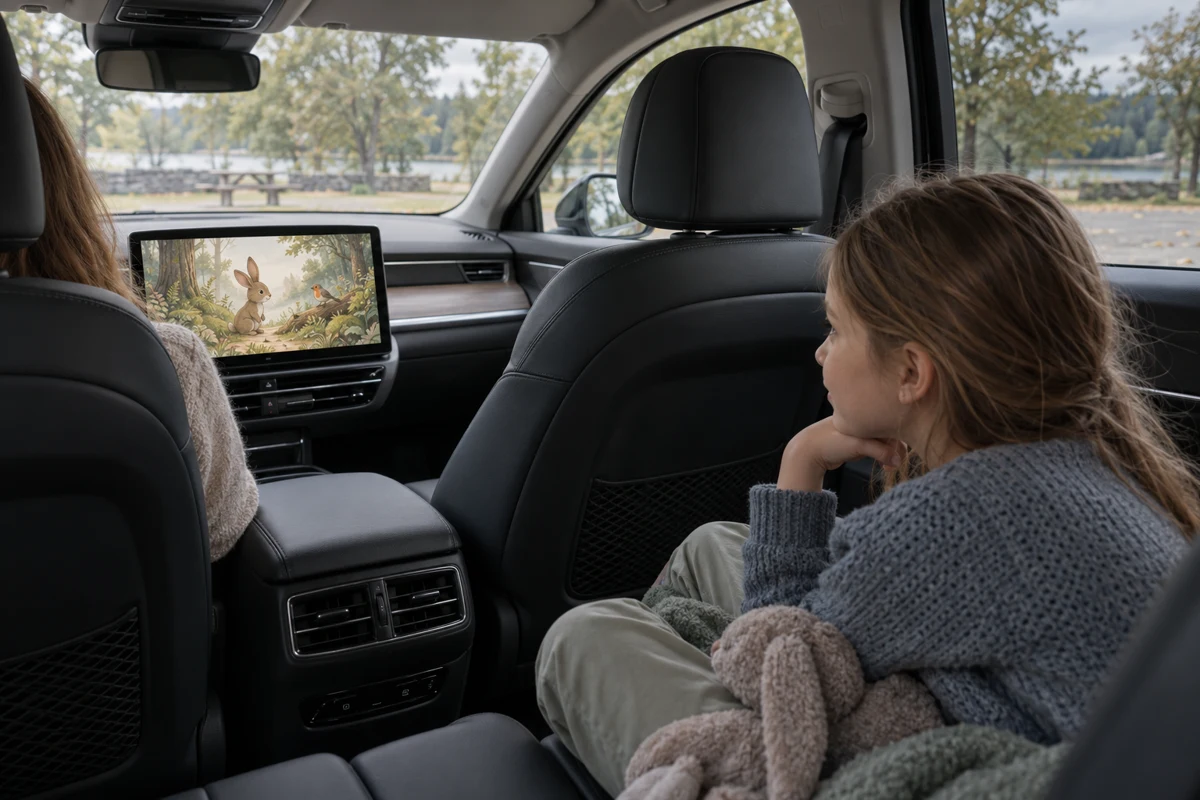
Online playlists and media servers still need a connection.
HOW IT WORKS
Tap + to import videos, paste a playlist link or connect your media server.
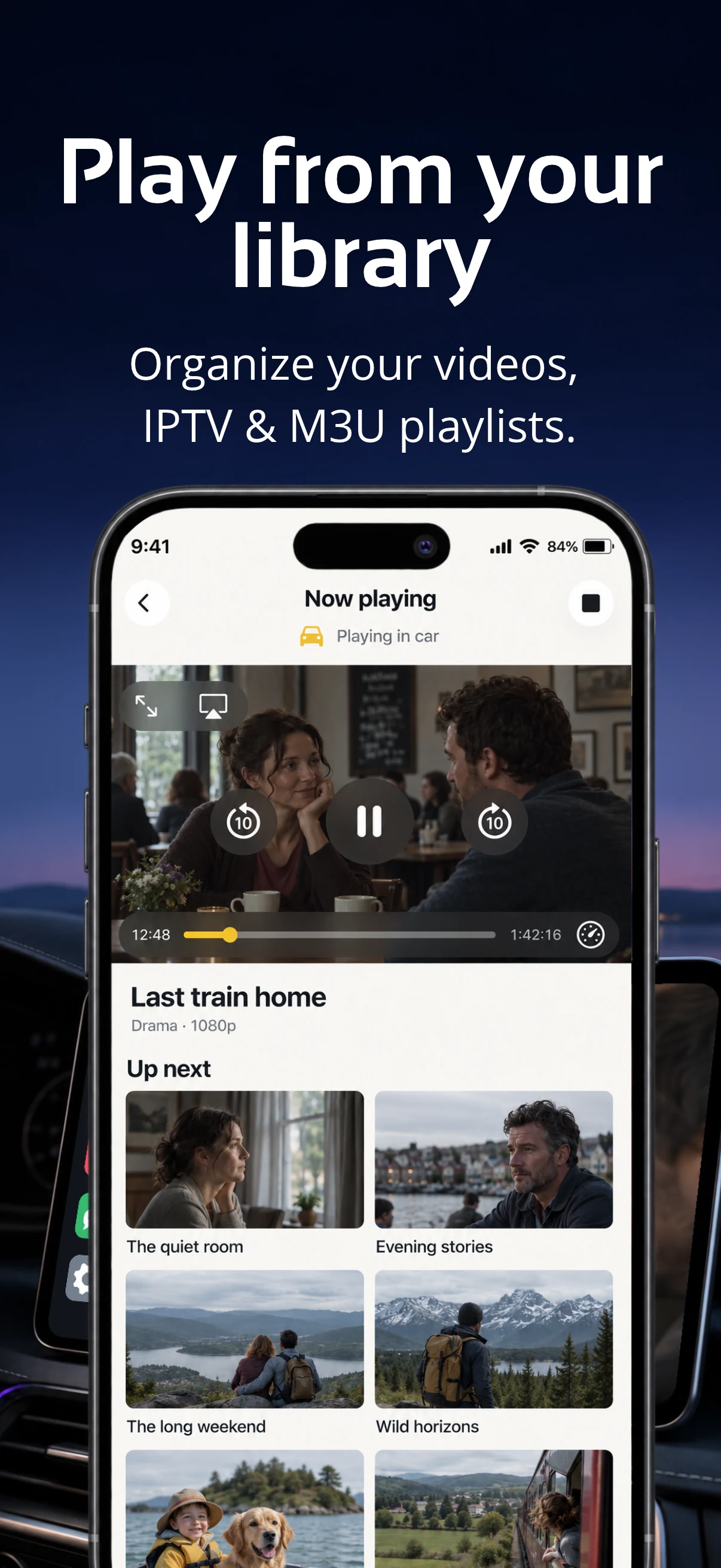
Watch on iPhone, or connect to a car display that supports video playback.
Choose a video from your library. For screen sharing, open Car → Screen mirroring and follow the system prompt.
MEET THE APP
VIONDO PRO
Download Viondo for free. Unlock Pro for viewing without time limits, on your iPhone and compatible car displays.
 Free Download
Choose a subscription or lifetime access with a one-time purchase. Subscriptions renew automatically unless cancelled. Purchases are handled by the App Store.
Watch your videos without the free viewing time limit.
Share your iPhone screen and app audio without a time limit.
Enjoy imported videos, M3U playlists and your connected media servers.
Stay focused on what you are watching.
COMMUNITY
Questions, tips and ideas. Get in touch.
Viondo is a player. Add an M3U playlist from your provider or connect Plex, Jellyfin, Emby or Xtream in Settings → Sources. Channels and provider subscriptions are not included.
An M3U playlist is a list of links to channels or videos. Add its address using the + button or Settings → Sources. Your provider supplies the links and access.
Yes. Play supported videos directly on your iPhone. A car or an external screen is optional.
Import videos from Photos, Files or a folder. Viondo keeps its own copies for local playback. Online playlists and streams need a network connection.
Open Car → Screen mirroring → Start, confirm that you are parked, then start the system broadcast. Choose a compatible display and open the app you want to share. Notifications may appear. Your microphone stays off.
Open Car → Stream an app, choose an app and continue with Screen mirroring. These shortcuts use the same system screen broadcast. Some protected content cannot be shared.
No. You need a compatible video display. CarPlay audio support alone does not guarantee video support. The car controls when video is available; watch only while safely parked.
Screen mirroring needs an unlocked iPhone. Locking can end the system broadcast; start a new broadcast after unlocking. Ordinary video playback is a separate mode and can continue on a supported external display.
Screen mirroring can be delayed. Check the selected display and the car’s video availability. Protected content may be hidden. If picture or sound stops, end sharing, reconnect your display and start a new broadcast.
Check your connection, source address and provider access. Not every format or protected stream can be played or shared. Try playing the video on your iPhone.
Open Settings → Viondo Pro to see verified access and the current subscription period. With an active plan, manage it or use Restore from that page. Without a plan, the Pro offer opens. A lifetime purchase does not automatically cancel another subscription.
Remove a source in Settings → Sources to delete its saved entries and history. Touch and hold an imported video to remove Viondo’s copy. The original in Photos or Files is not deleted.


